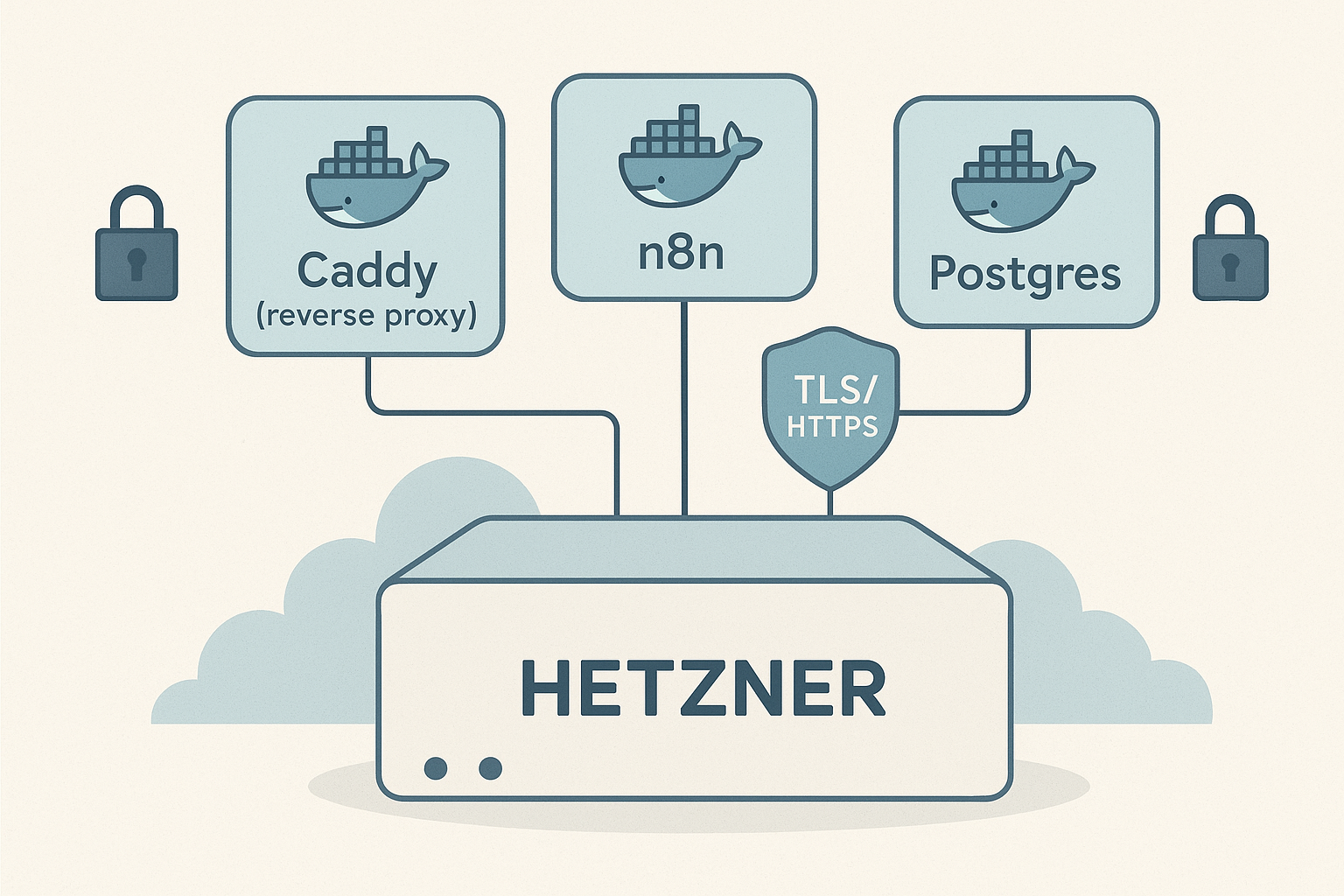
This is a concise report of how I provisioned a Hetzner VPS and deployed Docker containers for Caddy, n8n, and Postgres. The Caddy instance handles reverse proxying and automatic HTTPS, n8n runs my automation workflows, and Postgres is the persistent database backend. Everything is confined to Docker, exposed only through the reverse proxy, and secured to limit unnecessary access.
High-level approach
The setup follows three simple principles:
- Isolate: Run each service in its own container and use Docker networking to control reachability.
- Terminate TLS at the edge: Use Caddy as a reverse proxy so HTTPS is managed centrally and automatically.
- Lock down access: Only expose the reverse proxy to the public internet; keep the database accessible only from inside the Docker network.
Provisioning the VPS
I chose a Hetzner VPS for its price-to-performance ratio and simple networking. Key decisions at provisioning were:
- Create the server with an SSH key instead of a password to harden initial access.
- Pick a minimal Linux image so I could install only the dependencies I needed (Docker and Docker Compose).
- Reserve a floating IP or configure DNS so the server is reachable under my domain names used by Caddy.
Installing Docker and preparing the host
On the fresh VPS I installed Docker and the compose tooling, then created a small set of directories for Docker volumes so container data persists across restarts. I applied a few host-level hardening steps (SSH key-only login, disable root SSH where appropriate, and keep the system updated).
Docker composition and services
All services run as Docker containers. The core services are:
- Caddy — reverse proxy and automatic HTTPS certificate management.
- n8n — automation/orchestration engine that handles workflows.
- Postgres — relational database used by n8n as its backend.
Key composition choices:
- Create a dedicated Docker network so containers can reach each other without exposing internal ports to the public network.
- Mount volumes for Postgres data and any n8n persistence so a container restart or rebuild doesn’t lose state.
- Provide secrets and configuration to containers via environment variables or Docker secrets rather than baking credentials into images.
Caddy as the reverse proxy and TLS terminator
I used Caddy to centralize all incoming web traffic. The benefits were immediate:
- Automatic HTTPS using Let’s Encrypt (managed by Caddy).
- Simple host-based routing so multiple services can live behind the same public IP and domain names.
- Ability to apply global HTTP headers, rate limits, or other edge controls in one place.
Caddy only exposes the public-facing ports (HTTP/HTTPS). Other services run on internal ports accessible only via the internal Docker network and Caddy’s proxy rules.
Postgres: internal-only database
The Postgres container never binds its port to the host. Instead, it listens on the Docker network and accepts connections only from authorized containers (in this case, n8n). I ensured persistent storage using a mounted Docker volume and applied these practices:
- Use a strong database password and store it in an environment file or secret manager.
- Restrict access to the database by network and by user privileges inside the database.
- Run regular backups of Postgres data to an external location or snapshot storage.
n8n: connecting to Postgres and serving behind Caddy
n8n is configured to use Postgres as its database. n8n listens on an internal port and is only reachable externally via Caddy’s reverse proxy routes for the n8n domain or subdomain. This keeps n8n’s administrative surface area minimal and protected by the TLS/Edge rules implemented in Caddy.
Security and locking down the stack
When I say “secured and locked down,” I mean a few specific controls were put in place:
- SSH access: Key-based authentication only; optionally change the default port and limit source IP ranges where feasible.
- Firewall: Only expose ports 80/443 (handled by Caddy) and SSH. Do not publish database or application ports to the public network.
- Docker network isolation: Use an internal Docker network for services that should not be reachable from outside the host.
- Secrets management: Keep credentials out of Dockerfiles and use environment files or Docker secrets for runtime configuration.
- Least privilege: Create database users with only the permissions the application needs.
Validation and ongoing maintenance
After deployment I validated the setup by checking:
- That Caddy serves HTTPS for my domains and that the certificates renew automatically.
- That n8n can connect to Postgres and that workflows run as expected.
- That only the intended ports are reachable from the public internet.
- That container logs and service health can be inspected for quick troubleshooting.
For maintenance I keep an eye on OS and container updates, rotate credentials periodically, and run scheduled backups of the database. Regularly reviewing logs and monitoring resource usage helps catch configuration drift early.
Lessons and recommendations
- If you want minimal operational burden for HTTPS, let Caddy manage certificates — it reduces manual steps significantly.
- Never expose your database to the public internet. It’s a common but avoidable risk.
- Treat the Docker host as part of your security boundary: apply updates, limit SSH access, and run only the containers you need.
This stack—Hetzner VPS, Docker, Caddy, n8n, and Postgres—gives a solid balance between control, simplicity, and security when you confine surface area and centralize HTTPS at the proxy. Everything on my server is running smoothly, served through Caddy’s TLS layer, and protected by the network and host-level hardening I described.
Leave a Reply